|
Troubleshooting Windows XP Professional with the Remote Assistant, Part 2 Thursday, November
29, 2001 By Greg Shultz (This article was originally published on the 8wire Web
site and is reprinted on TheWinWiz
with permission.) In Part 1 of this
series, I introduced you to the Windows XP Remote Assistance feature and explained
how it works on a corporate network. I then showed you how to configure a
novice user's Windows XP Professional system to accept a Remote Assistance
request. This article will show you how to use the Offer Remote Assistance
feature from an expert's system. I'll also show you what occurs on a novice
user's system during the Remote Assistance session, and pass on some tips
that will help you get the most out of the Offer Remote Assistance feature. Offering Remote Assistance on a Network
As I mentioned in Part
1, the default method of operation for the network mode of Remote Assistance
assumes that there's already a system in place for the corporate help desk to
receive requests for assistance from novice users. As such, if you're an
expert who has received a request for assistance, you may want to begin by
contacting the novice and informing them that you're ready to assist with the
problem. Once the novice is
standing by, you can launch the Offer Remote Assistance feature on your
Windows XP Professional system. To do so, open the Help and Support Center
and select the Use Tools link under the Pick a Task category. When the Tools
page appears, select Offer Remote Assistance in the Tools list and the Offer
Remote Assistance page will appear. If you want to make the
Offer Remote Assistance feature easier to access in the future, you can add
it to the Help and Support Center's Favorites list. To do so, just click the
Add to Favorites button on the toolbar. Now, the next time you need to offer
Remote Assistance to a novice user, you open the Help and Support Center,
click the Favorites button on the navigation bar, and double-click Remote
Assistance in the Favorites list. Once you see the Offer
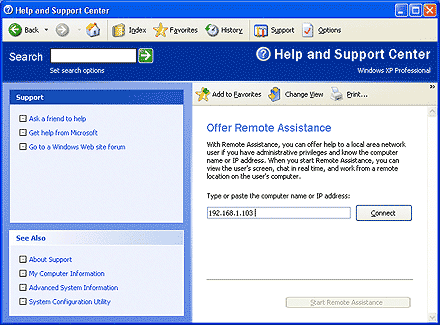
Remote Assistance page, you'll type either the name of the computer or its IP
address in the text box and click the Connect button. For example, if you
want to connect to a computer that is assigned the IP address 192.168.1.103,
you'd fill in the text box as shown in Figure 1.
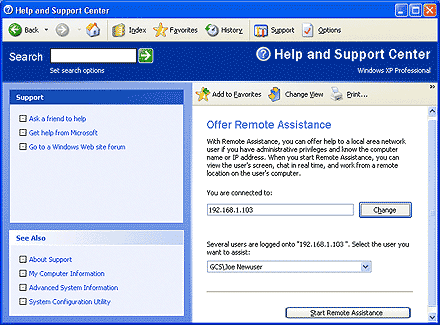
If the system you're attempting
to connect to has multiple users, when you click the Connect button you'll
see an additional prompt that asks you to confirm which user you want to
offer assistance to, as shown in Figure 2. This is kind of a bogus step
considering that only the user currently logged on to the system will appear
in that list.
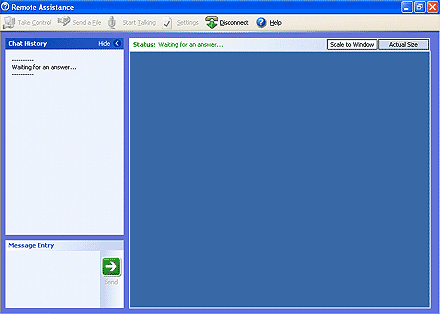
To continue, just click
the Start Remote Assistance button. When you do, the Offer Remote Assistance
feature will log on to the novice user's system and load the Remote
Assistance interface, as shown in Figure 3. As you can see, Remote
Assistance's Status bar indicates that the program is waiting for an answer
from the novice. During this time most of Remote Assistance's features are
inoperable - the only things an expert can do are click the Disconnect
button, which will immediately terminate the Remote Assistance session, or
click the Help button, which reveals an About screen that contains some
pretty basic information.
Accepting an Offer for Remote
Assistance
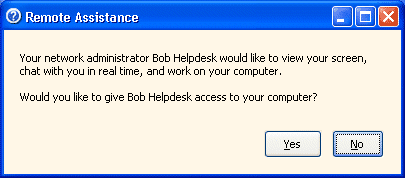
Once the expert
initiates an offer for remote assistance, the novice's system displays the
Remote Assistance dialog box shown in Figure 4. As you can see, this dialog
box informs the novice that an expert is requesting remote access to their
computer, tells them who the expert is, and prompts them to allow the expert
to access their computer.
If the novice doesn't
respond within five minutes, the request will time out and the expert will
see a message box letting them know the request timed out. If the novice
clicks No, the expert will see a message box letting them know that request
was denied. In both these cases, the only thing the expert can do is to click
the Disconnect button, which will immediately terminate the Remote Assistance
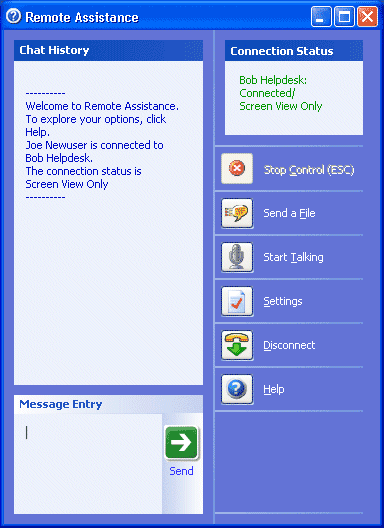
program. When the novice clicks
Yes, they'll immediately see the Remote Assistance client window on their
screen as shown in Figure 5. As you can see, the Connection Status pane
informs the novice, Joe Newuser in this example, that the expert, Bob
Helpdesk, is connected to his computer with "screen view only"
rights. This means that the expert can only see the novice's desktop; he
doesn't have full control of the system right off the bat.
Configuring the Expert's Remote
Assistance Screen
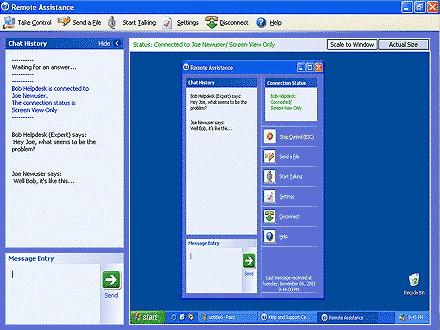
At this point, the
expert's Remote Assistance screen shows the entire desktop on the novice
user's system in actual size. Since the expert's Remote Assistance screen
contains the Chat History panel and its own toolbar, the expert will have to
use the scroll bars to see the novice's entire desktop. To make the novice's
desktop easier to see, the expert has two choices:
Taking Full Control
As you look at the
screen in Figure 6, you can see that both the expert's Remote Assistance
screen and the novice's Remote Assistance client window contain a Chat History
panel and a toolbar that provides access to a set of additional Remote
Assistance communication features. The Chat feature is
pretty straightforward, so I won't go into any more detail on it. I'll come
back to the additional Remote Assistance communication features on the
toolbar in a moment. Right now, I want to direct your attention to the Take
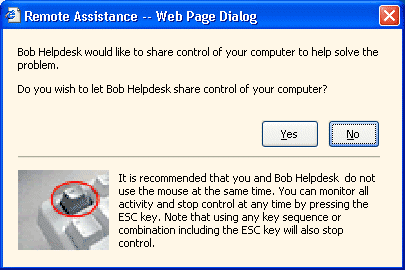
Control button on the expert's Remote Assistance screen. When the expert
clicks this button, the dialog box shown in Figure 7 appears on the novice
user's desktop prompting them to allow the expert to take full control of
their system.
Once the novice clicks
Yes, the expert will see a message box informing him that he now has full
control on the novice user's system. At this point, the expert can perform
any operation on the novice user's system just as if he were sitting at the
keyboard. At any point in time,
the novice can terminate the expert's full control of the system by pressing
the ESC key or by clicking the Stop Control button on the Remote Assistance
client window. The expert can terminate full control of the novice user's
system by either pressing the ESC key or by clicking Release Control button,
which appears in place of the Take Control button. Using the Voice Communication Feature
In addition to the Chat
History panel, the expert and the novice can communicate via voice as long as
both systems have sound cards with either speakers and a microphone or a
headset. However, it's important to understand that adding voice
communications to a Remote Assistance session will dramatically increase
network traffic. If you feel your network is too congested to handle the
extra traffic generated by the Remote Assistance voice communications
feature, you might want to stick with the Chat feature or just use the
telephone. To start a voice
connection, either the expert or the novice can click the Start Talking
button. The other will then receive a message containing an invitation to use
the voice connection feature. The first time you use the voice connection
feature, the Audio and Video Tuning Wizard will walk you through a configuration
procedure that makes sure your speakers and microphone are configured
properly for voice communication. Once the wizard is
finished, you may want to configure the audio quality for the network mode of
operation. However, keep in mind that while doing so will improve the audio,
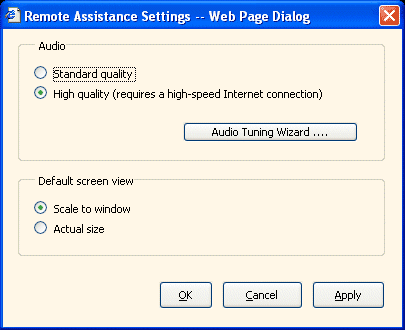
it will also take up additional bandwidth on your network. To configure the
audio quality, click the Settings button on the toolbar. From the Remote
Assistance Settings dialog box, you can select the High Quality setting, as
shown in Figure 8. You can also access the Audio and Video Tuning Wizard from
the Remote Assistance Settings dialog box. On the expert system, you can
configure the default screen view as well.
Either party can cancel
the voice communication session by clicking the Stop Talking button, which
appears in place of the Start Talking button. Transferring Files
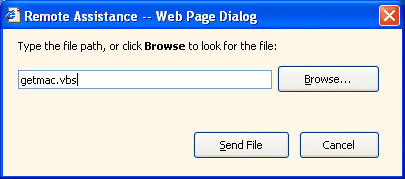
If either the expert or
the novice needs to send files to the other, they can do so using the Send A
File feature. To do so, you just click the Send A File button on the toolbar.
You'll then see a dialog box that allows you to select the file and then send
it, as shown in Figure 9.
When you click the Send
File button, the other party is prompted to accept the file and can then
choose where to save it. Once the file is saved, Remote Assistance will ask
if you want to open the file. As you can see, Windows
XP Professional's Offer Remote Assistance feature provides you with all kinds
of features that can make it easy for help desk or other IT personnel to
provide firsthand troubleshooting and technical support without ever having
to leave their desks. |
|